PixComic guide
How to Turn a Story Into a Comic With AI
Break a story into a visual beat, choose a style, create characters, and generate comic pages you can continue.
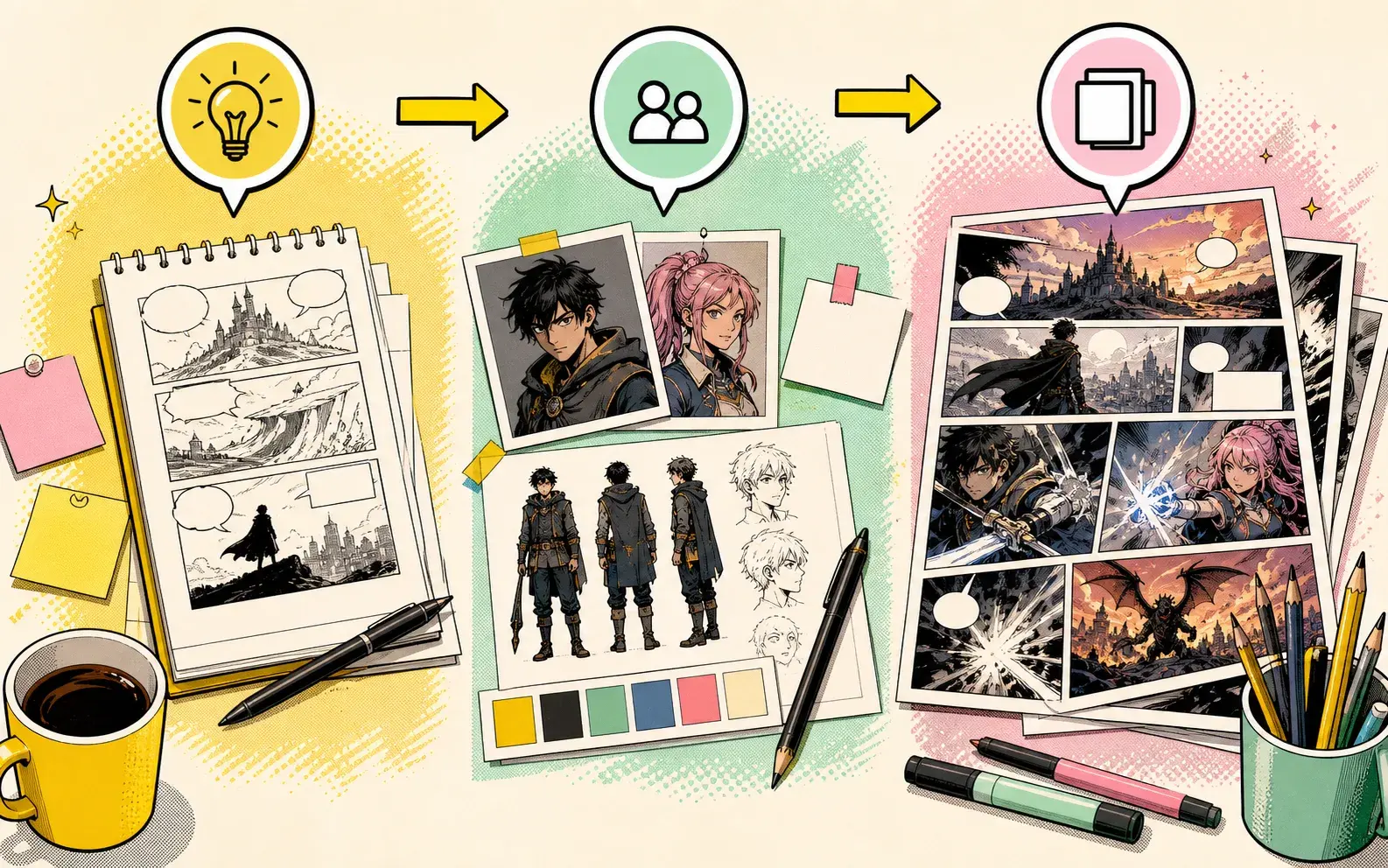
Choose one scene first
The easiest way to turn a story into a comic is to start with one scene, not the entire plot. Pick the moment with the clearest conflict or emotion.
For a first generation, ask PixComic to create the opening scene, a turning point, or a short ending beat. You can continue the story after the first result.
Give the cast a job
Characters should have clear roles inside the prompt. A hero wants something, another character blocks it, and the scene ends with a change.
If you want character continuity, create or select characters before generating the comic.
Continue scene by scene
After generating the first pages, review what worked: character look, pacing, tone, and readability. Then continue the comic with the next scene instead of rewriting the whole story at once.
This scene-by-scene workflow gives you more control and keeps the result closer to your original idea.
Use a scene template
A practical template is: main character, location, immediate problem, emotional reaction, style, and final reveal. This gives the generator enough structure without turning the prompt into a script.
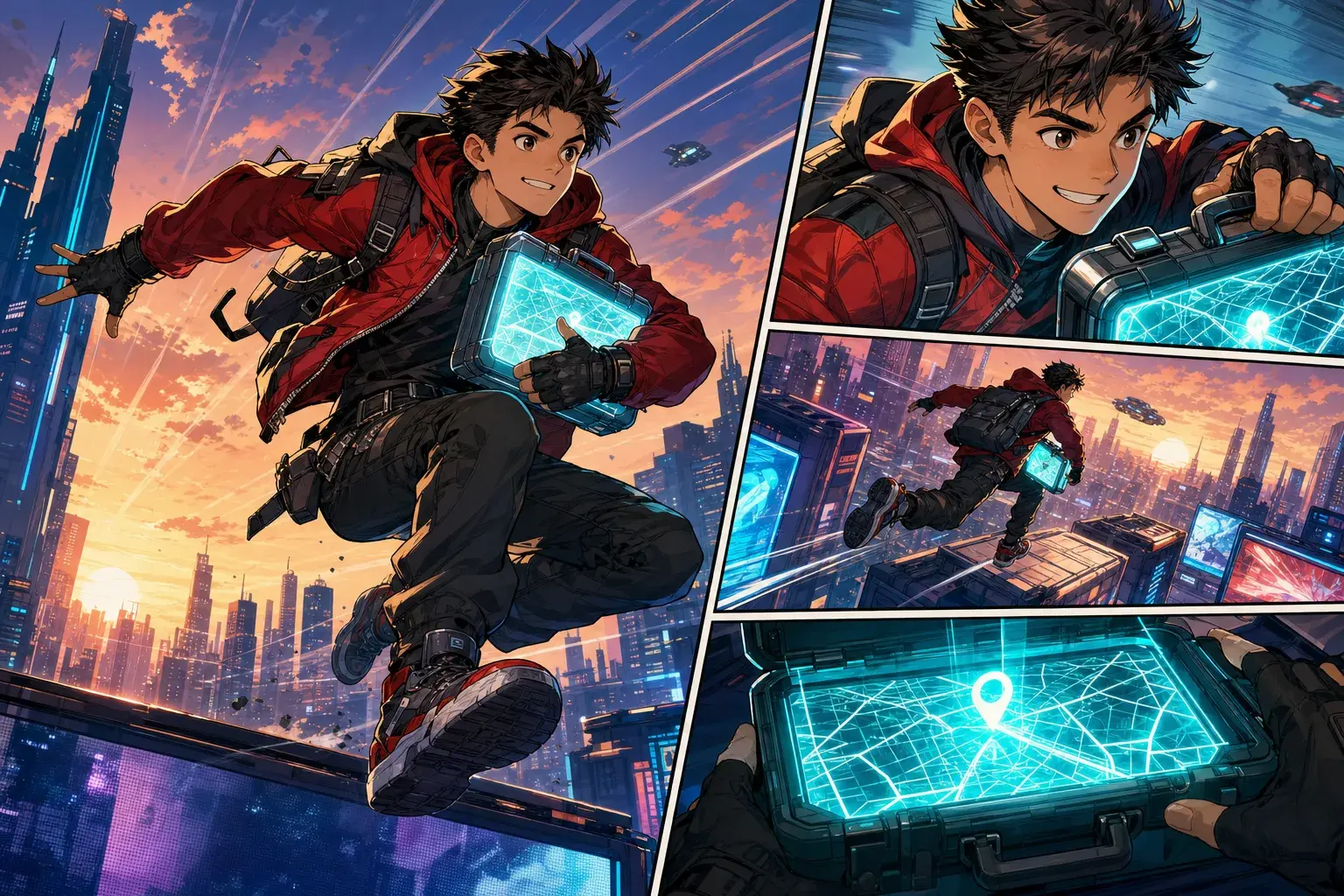
Example: A young courier enters an empty train station at midnight, finds a glowing package addressed to them, hears footsteps behind the ticket gate, and ends on the package opening by itself.
Pick the right first result to continue
Do not continue every result. Continue the version where the character silhouette, setting, and emotional direction are already close to your goal.
If the first pages miss the core relationship or conflict, rewrite the prompt with fewer characters and a clearer ending beat before generating again.
Practical checklist for story-to-comic workflows
Before generating, check whether the prompt names one main character, one setting, one immediate problem, and one visible ending beat. This keeps story-to-comic workflows focused enough for a readable comic sequence.
The prompt should also say why the scene matters. A clear goal, interruption, reveal, or reaction gives PixComic a stronger path than a list of visual adjectives.
Prompt patterns to copy
For a dramatic scene, write: character wants a result, a second force blocks it, the mood changes, and the final panel reveals new information.
For a lighter scene, write: character expects one outcome, the scene gives the opposite, and the last beat makes the reversal obvious. Adjust the style words for comic, manga, manhwa, or manhua instead of reusing the exact same prompt.
Mistakes that make pages thin
Thin comic results usually come from broad prompts such as “make a cool comic” or from asking for too many scenes at once. Those prompts create images, but not a guideable story path.
Another common mistake is changing the character, style, location, and conflict in every generation. Keep the core role stable, then change one story variable at a time.
Next step in Story to Comic
Open Story to Comic when the scene idea is ready. Start with a short prompt, generate the first pages, then decide whether to continue, regenerate, or rewrite the ending beat.
If the first result is close, continue from it. If the result misses the main conflict, shorten the cast and make the last panel more specific before trying again.
Prompt kit you can adapt
Use this structure as a starting point, then open a related PixComic tool with the matching creator setup.
Reliable prompt formula
- Main cast and role
- Setting and visual mood
- Visible conflict or surprise
- Comic style and page rhythm
- Final panel or continuation hook
Template 1: Story to Comic
A short adventure scene with a clear beginning, conflict, and ending, told as a readable comic. Break a story into a visual beat, choose a style, create characters, and generate comic pages you can continue.
Open with this promptTemplate 2: Comic Strip Maker
A four-beat comic strip about a surprising misunderstanding, with a clear punchline at the end. Break a story into a visual beat, choose a style, create characters, and generate comic pages you can continue.
Open with this promptCommon questions before you create
Can I use this Story to Comic guide directly in PixComic?+
Yes. Start from Story to Comic, paste a compact scene prompt, then generate and continue the pages inside PixComic.
What should the first prompt include?+
Include the cast, setting, visible conflict, style, and final beat. That gives PixComic enough direction to create readable pages.
Should I generate a whole comic at once?+
Start with one focused scene first. Continue only the version where the characters, pacing, and final hook already work.
Tool references for this guide
Open the related PixComic tool pages when you are ready to turn the advice into generated comic pages.
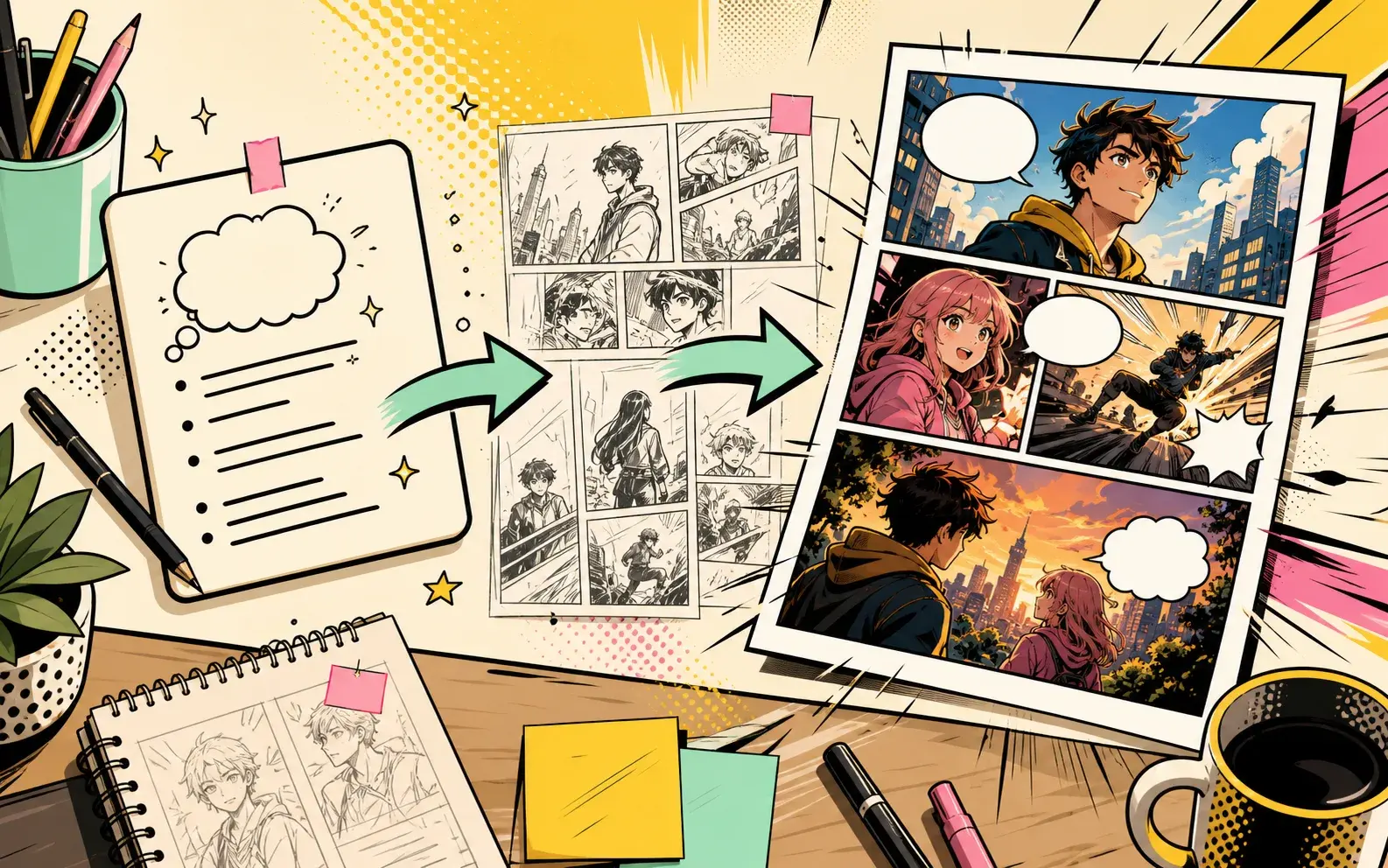
Prompt sets for high-intent AI comic searches
Each set explains what to include in the prompt, gives ready-to-use examples, and links to the matching PixComic creator flow.
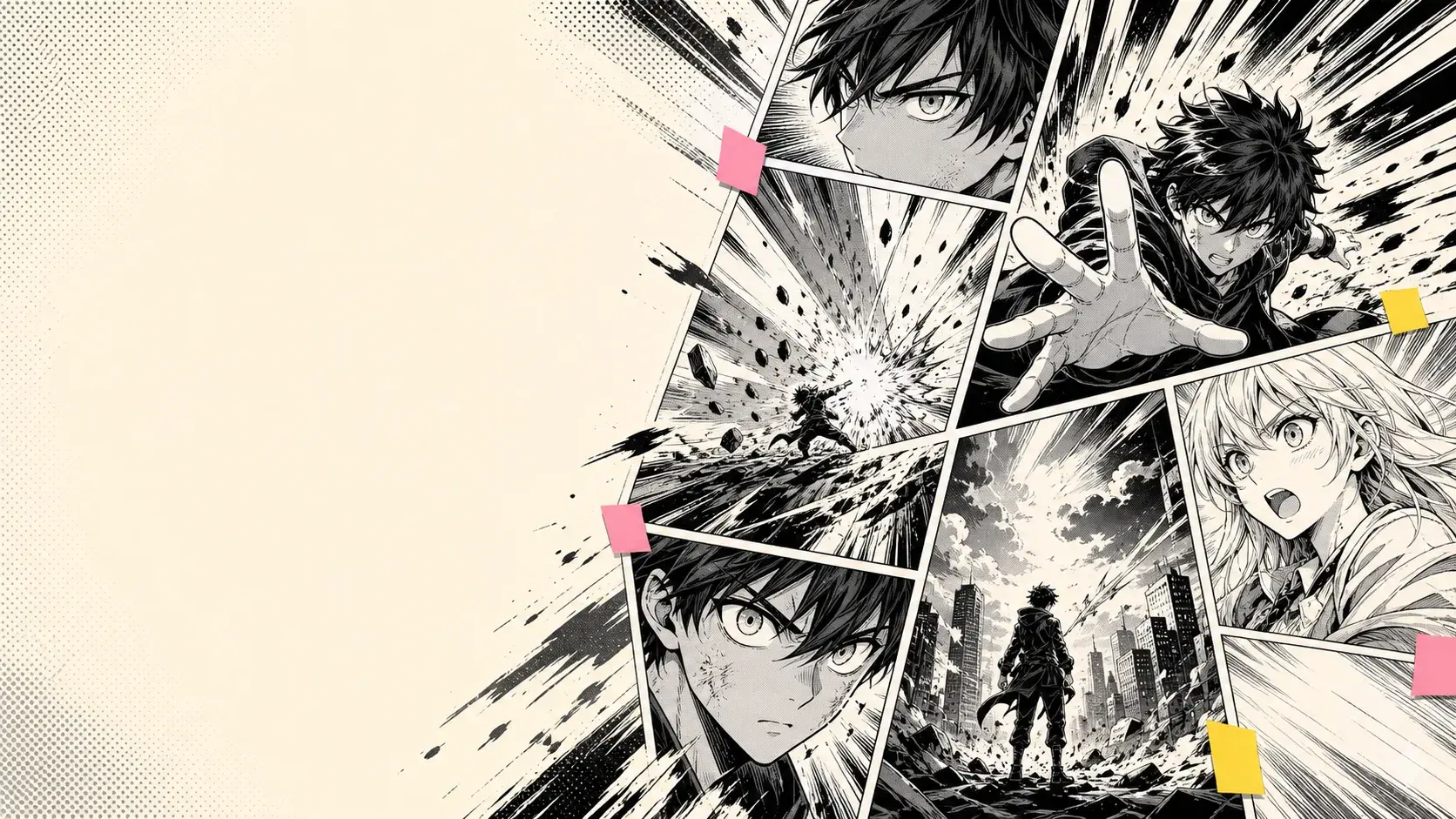
Example pages for high-intent AI comic searches
Each example includes the prompt shape, why the image works, and which PixComic tool to open next.